
Building a self-synchronizing Bedrock knowledge base with S3 Vector
Amazon S3 Vectors became generally available in December 2025, bringing native vector storage to S3 with the capacity to store up to 2 billion vectors per index (a 40x increase from preview) and sub-100ms query latencies. And while doing that, it can also reduce RAG infrastructure costs by up to 90% compared to traditional vector databases, making it suitable not just for very large but also for very small usage cases.
This post demystifies the process of setting up S3 Vector Bedrock Knowledge Base by walking through complete implementation in CloudFormation. Examining the infrastructure as code will reveal components, dependencies, and permissions required—bringing full transparency to the “magic” that happens when the same is build from AWS console.
But I will also add some magic ;-) sync mechanism that keeps the knowledge base synchronized with S3 changes automatically. Here’s the complete flow that CloudFormation will build. Click the image to enlarge.

The complete CloudFormation template is available in the aws-bedrock-kb-s3-vector repository.
The IAM Policies
Let’s start from the IAM roles — this is where the console hides most details.
Bedrock Knowledge Base Role (KnowledgeBaseRole):
AssumeRolePolicyDocument:
  Statement:
    - Effect: Allow
      Principal:
        Service: bedrock.amazonaws.com
      Action: sts:AssumeRole
      Condition:
        StringEquals:
          aws:SourceAccount: !Ref AWS::AccountId
        ArnLike:
          aws:SourceArn: !Sub 'arn:aws:bedrock:${AWS::Region}:${AWS::AccountId}:knowledge-base/*'
This trust policy allows the Bedrock service to assume the role, but ONLY:
- From your AWS account (prevents cross-account access)
- When acting on behalf of a knowledge base resource (not other Bedrock features)
Knowledge Base Permissions:
Policies:
  - PolicyName: S3Access
    PolicyDocument:
      Statement:
        # Read from data source bucket
        - Effect: Allow
          Action:
            - s3:GetObject
            - s3:ListBucket
          Resource:
            - !Sub '${DataSourceBucket.Arn}'
            - !Sub '${DataSourceBucket.Arn}/*'

        # Write to vector storage bucket
        - Effect: Allow
          Action:
            - s3:PutObject
            - s3:GetObject
            - s3:ListBucket
          Resource:
            - !Sub '${VectorStorageBucket.Arn}'
            - !Sub '${VectorStorageBucket.Arn}/*'

        # Invoke embedding model
        - Effect: Allow
          Action:
            - bedrock:InvokeModel
          Resource: !Sub 'arn:aws:bedrock:${AWS::Region}::foundation-model/${EmbeddingModelId}'
NOTE:
- Data source: Read-only access
- Vector storage: Read/write access
- Embedding model: Invoke permission scoped to specific model
Lambda Execution Role (AutoSyncLambdaRole):
Policies:
  - PolicyName: BedrockIngestionAccess
    PolicyDocument:
      Statement:
        - Effect: Allow
          Action:
            - bedrock-agent:StartIngestionJob
            - bedrock-agent:ListIngestionJobs
          Resource:
            - !Sub 'arn:aws:bedrock:${AWS::Region}:${AWS::AccountId}:knowledge-base/${KnowledgeBase}'
NOTE: Lambda can only interact with this specific knowledge base.
The Chunking Strategies
The console shows you chunking options in a simple dropdown. But each strategy requires different configuration resource type in CloudFormation. This makes switching the strategy bit more complex than it first seems.
Fixed-Size Chunking
ChunkingConfiguration:
  ChunkingStrategy: FIXED_SIZE
  FixedSizeChunkingConfiguration:
    MaxTokens: 300              # Max chunk size
    OverlapPercentage: 20       # 20% overlap between chunks
How it works:
- Document is tokenized using the embedding model’s tokenizer
- Split into chunks of 300 tokens
- Each chunk overlaps with the next by 20%
- This overlap ensures context isn’t lost at chunk boundaries
Hierarchical Chunking
ChunkingConfiguration:
  ChunkingStrategy: HIERARCHICAL
  HierarchicalChunkingConfiguration:
    LevelConfigurations:
      - MaxTokens: 1500          # Parent chunk size
      - MaxTokens: 300           # Child chunk size
    OverlapTokens: 60            # Absolute overlap (not percentage)
How it works:
- Document split into parent chunks (1500 tokens)
- Each parent split into child chunks (300 tokens)
- Child chunks overlap by 60 tokens
- Both parent and child chunks are embedded and stored
- Retrieval can leverage both granularities
This preserves document structure better than fixed-size. When searching, you get:
- High-precision matches from child chunks
- Broader context from parent chunks
Semantic Chunking
ChunkingConfiguration:
  ChunkingStrategy: SEMANTIC
  SemanticChunkingConfiguration:
    MaxTokens: 300                           # Maximum chunk size
    BufferSize: 1                            # Sentences to buffer
    BreakpointPercentileThreshold: 95        # Similarity threshold
How it works (this is the most sophisticated):
- Document split into sentences
- Sentences embedded using the model
- Calculate cosine similarity between adjacent sentence embeddings
- When similarity drops below the 95th percentile threshold, create a chunk boundary
- This creates “natural” chunks based on semantic shifts in content
BufferSize: 1means look at 1 sentence on either side for context
The result: chunks that respect topic boundaries rather than arbitrary token counts. A long paragraph discussing a single concept stays together, while a transition to a new topic creates a boundary even mid-paragraph.
No Chunking
ChunkingConfiguration:
  ChunkingStrategy: NONE
The entire document is embedded as one unit. This is practical for:
- Short documents
- When you need complete document context
- When document structure itself is important
Supported File Formats
Before diving into the implementation details, it’s important to understand what types of documents you can use with Bedrock Knowledge Bases. The service supports following formats at time of writing:
Text-Based Documents:
- PDF (
.pdf) - with support for multimodal parsing of figures, charts, and tables - Microsoft Word (
.doc,.docx) - Microsoft Excel (
.xls,.xlsx) - Plain text (
.txt) - Markdown (
.md) - HTML (
.html) - CSV (
.csv) - supports one content field with metadata fields
Multimodal Content:
- Images: JPEG (
.jpeg) and PNG (.png) - maximum 3.75 MB per file - Audio files (when using S3 or custom data sources)
- Video files (when using S3 or custom data sources)
File Size Limits:
- General documents: maximum 50 MB per file
- Image files: maximum 3.75 MB per file
For the complete and up-to-date list of supported formats and configurations, refer to the Prerequisites for your Amazon Bedrock knowledge base data documentation.
Knowledge Base Sync
Here’s where we go beyond what the console offers. The console doesn’t provide automatic synchronization—you must manually trigger ingestion jobs. When documents change frequently, this is impractical. Instead you should be able to upload documents to S3 and after a short moment knowledge base is updated automatically. And while doing this, avoid running sync for every document separately as update can be the most costly operation as it triggers re-embedding of documents, which incurs model invocation costs.”
The Event Flow in Detail
Step 1: S3 Event Configuration
First, the S3 bucket must enable EventBridge notifications:
DataSourceBucket:
  Type: AWS::S3::Bucket
  Condition: CreateNewBucket
  Properties:
    NotificationConfiguration:
      EventBridgeConfiguration:
        EventBridgeEnabled: true
When enabled, S3 emits events to EventBridge for:
Object Created(PutObject, CompleteMultipartUpload, CopyObject, POST object)Object Deleted(DeleteObject, DeleteObjects)
Step 2: EventBridge Rule
S3EventRule:
  Type: AWS::Events::Rule
  Condition: AutoSyncEnabled
  Properties:
    EventPattern:
      source:
        - aws.s3
      detail-type:
        - Object Created
        - Object Deleted
      detail:
        bucket:
          name:
            - !If [CreateNewBucket, !Ref DataSourceBucket, !Ref ExistingDataSourceBucket]
    Targets:
      - Arn: !GetAtt SyncEventQueue.Arn
        Id: SQSTarget
This rule filters ALL S3 events in your account to only:
- Events from S3 (
source: aws.s3) - Creation or deletion events (
detail-type) - From your specific data source bucket (
detail.bucket.name)
Events matching this pattern are sent to the SQS queue.
Step 3: SQS Batching Configuration
SyncEventQueue:
  Type: AWS::SQS::Queue
  Condition: AutoSyncEnabled
  Properties:
    MessageRetentionPeriod: 86400              # 1 day
    VisibilityTimeout: 360                     # 6 minutes
The Lambda event source mapping configures batching:
Events:
  SQSEvent:
    Type: SQS
    Properties:
      Queue: !GetAtt SyncEventQueue.Arn
      BatchSize: 100                           # Process up to 100 events
      MaximumBatchingWindowInSeconds: 60       # Wait up to 60s to accumulate
This batching is critical for efficiency:
- If you upload 1 file, Lambda triggers after 60 seconds with 1 event
- If you upload 50 files within 60 seconds, Lambda triggers once with 50 events
- If you upload 100+ files, Lambda triggers with 100 events (max batch)
Step 4: Lambda Processing Logic
The Lambda function implements intelligent sync management. Let’s examine the key parts:
def lambda_handler(event, context):
    num_records = len(event.get('Records', []))
    print(f"Received {num_records} event(s)")

    # Check if there's already an ingestion job running
    response = bedrock_agent.list_ingestion_jobs(
        knowledgeBaseId=KNOWLEDGE_BASE_ID,
        dataSourceId=DATA_SOURCE_ID,
        maxResults=1
    )

    ingestion_jobs = response.get('ingestionJobSummaries', [])

    if ingestion_jobs:
        latest_job = ingestion_jobs[0]
        status = latest_job.get('status')

        if status in ['STARTING', 'IN_PROGRESS']:
            # Sync is running - schedule a follow-up
            sqs.send_message(
                QueueUrl=SYNC_QUEUE_URL,
                MessageBody=json.dumps({
                    'type': 'retry',
                    'reason': 'sync_in_progress',
                    'timestamp': datetime.now(timezone.utc).isoformat()
                }),
                DelaySeconds=300  # Retry after 5 minutes
            )
            return {'statusCode': 200, 'body': 'Sync deferred'}
Why check for running jobs? Bedrock ingestion jobs can take several minutes. If we start a new job while one is running, we waste resources and create race conditions.
Why send a retry message? Files added during a sync won’t be in the current job. The retry message ensures a follow-up sync happens after the current one completes.
Why 5-minute delay? This prevents busy-waiting. The Lambda won’t be triggered by the retry message until 5 minutes pass, by which time most syncs have completed.
    # No running job - check if queue needs purging
    queue_attrs = sqs.get_queue_attributes(
        QueueUrl=SYNC_QUEUE_URL,
        AttributeNames=['ApproximateNumberOfMessages',
                        'ApproximateNumberOfMessagesDelayed']
    )

    total_messages = (
        int(queue_attrs['Attributes']['ApproximateNumberOfMessages']) +
        int(queue_attrs['Attributes']['ApproximateNumberOfMessagesDelayed'])
    )

    if total_messages > 0:
        try:
            sqs.purge_queue(QueueUrl=SYNC_QUEUE_URL)
            print(f"Purged {total_messages} messages from queue")
        except ClientError as e:
            if 'PurgeQueueInProgress' in str(e):
                print("Queue purge already in progress, continuing with sync")
Why purge the queue? This is non-obvious but critical. When Bedrock starts an ingestion job, it scans the ENTIRE S3 bucket. Individual S3 event messages telling us “file X was added” become redundant — we’re processing ALL files anyway.
Without purging:
- Queue accumulates thousands of S3 event messages
- Retry messages keep accumulating during long syncs
- Lambda gets triggered repeatedly with redundant batches
With purging:
- Before each sync, we clear all queued messages
- The sync processes everything in the bucket
- Clean slate for the next round of events
Why check message count first? SQS enforces a 60-second cooldown between purge operations. If we purge an empty queue, we can’t purge again for 60 seconds. By checking first, we only purge when necessary.
    # Start the ingestion job
    response = bedrock_agent.start_ingestion_job(
        knowledgeBaseId=KNOWLEDGE_BASE_ID,
        dataSourceId=DATA_SOURCE_ID
    )

    job_id = response['ingestionJob']['ingestionJobId']
    print(f"Started ingestion job: {job_id}")

    return {
        'statusCode': 200,
        'body': json.dumps({
            'message': 'Ingestion job started',
            'jobId': job_id
        })
    }
The ingestion job processes:
- All objects in the S3 data source bucket
- Applies the configured chunking strategy
- Generates embeddings via the embedding model
- Stores vectors in the vector storage bucket
- Updates the searchable index
Concurrency Control
AutoSyncFunction:
  Type: AWS::Serverless::Function
  Properties:
    ReservedConcurrentExecutions: 1    # Only 1 instance can run at a time
This setting is critical. Without it multiple batches of S3 events could trigger multiple Lambda instances. Each instance might call list_ingestion_jobs and see “no running job”.
Multiple instances start duplicate ingestion jobs simultaneously causing wasted resources and potential race conditions.
Edge Cases Handled
Fast consecutive syncs
If your documents are small and ingestion completes in <60 seconds:
- New files trigger Lambda
- Check finds no running job
- Check message count (might be 0 if queue was just purged)
- Skip purge (avoids 60-second cooldown violation)
- Start new sync
Purge failure during long sync
If files keep arriving during a 5-minute sync:
- Multiple Lambda invocations send retry messages
- Eventually, retry delay expires and Lambda runs
- Tries to purge queue
- Purge fails due to SQS’s 60-second cooldown from previous purge.
- Lambda logs warning and continues anyway
- Sync still succeeds (graceful degradation)
Sync completes during retry delay
Upload 100 files, sync takes 3 minutes:
- During those 3 minutes, new S3 events trigger Lambda
- Each batch schedules a 5-minute retry
- After 3 minutes, sync completes
- At 5 minutes, first retry message triggers Lambda
- No job running, queue is purged, new sync starts
- Subsequent retry messages are purged before they trigger (redundant but harmless)
Deployment
Let’s walk through deployment and observe what gets created.
Deploy with New Bucket
aws cloudformation deploy \
  --template-file template.yaml \
  --stack-name my-knowledge-base \
  --parameter-overrides \
    KnowledgeBaseName=MyKnowledgeBase \
    ChunkingStrategy=SEMANTIC \
    EnableAutoSync=true \
    AutoSyncDelaySeconds=60 \
  --capabilities CAPABILITY_NAMED_IAM
The CAPABILITY_NAMED_IAM flag is required because the template creates IAM roles with custom names. This is CloudFormation’s safety mechanism—you must explicitly acknowledge that you’re creating IAM resources.
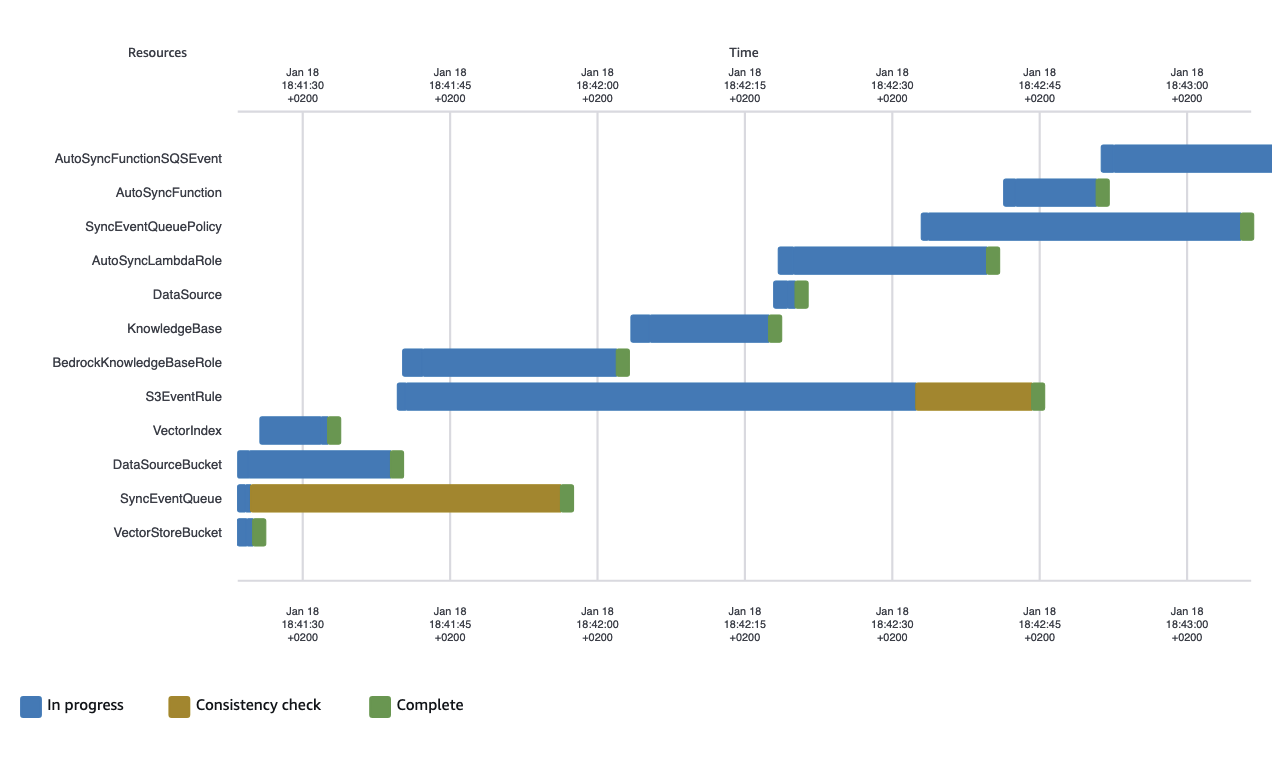
Watch the stack events:
aws cloudformation describe-stack-events \
  --stack-name my-knowledge-base \
  --max-items 20
You’ll see resources created in dependency order
Upload Documents and Observe
# Get bucket name from stack output
BUCKET_NAME=$(aws cloudformation describe-stacks \
  --stack-name my-knowledge-base \
  --query 'Stacks[0].Outputs[?OutputKey==`DataSourceBucketName`].OutputValue' \
  --output text)

# Upload a document
aws s3 cp my-document.pdf s3://${BUCKET_NAME}/
Now watch the auto-sync in action:
# Get Lambda function name
FUNCTION_NAME=$(aws cloudformation describe-stacks \
  --stack-name my-knowledge-base \
  --query 'Stacks[0].Outputs[?OutputKey==`AutoSyncFunctionArn`].OutputValue' \
  --output text | cut -d: -f7)

# Tail logs
aws logs tail /aws/lambda/${FUNCTION_NAME} --follow
You’ll see output like:
2026-01-18T13:45:23.456Z START RequestId: abc-123-def
2026-01-18T13:45:23.789Z Received 1 event(s)
2026-01-18T13:45:24.123Z Latest ingestion job xyz-789 status: COMPLETE
2026-01-18T13:45:24.456Z Queue has 0 messages, skipping purge
2026-01-18T13:45:25.789Z Started ingestion job: new-job-456
2026-01-18T13:45:25.890Z END RequestId: abc-123-def
Check the ingestion job status:
KB_ID=$(aws cloudformation describe-stacks \
  --stack-name my-knowledge-base \
  --query 'Stacks[0].Outputs[?OutputKey==`KnowledgeBaseId`].OutputValue' \
  --output text)

DS_ID=$(aws cloudformation describe-stacks \
  --stack-name my-knowledge-base \
  --query 'Stacks[0].Outputs[?OutputKey==`DataSourceId`].OutputValue' \
  --output text)

aws bedrock-agent list-ingestion-jobs \
  --knowledge-base-id ${KB_ID} \
  --data-source-id ${DS_ID} \
  --max-results 5
Output shows the job lifecycle:
{
  "ingestionJobSummaries": [
    {
      "ingestionJobId": "new-job-456",
      "status": "IN_PROGRESS",
      "startedAt": "2026-01-18T13:45:25Z",
      "statistics": {
        "numberOfDocumentsScanned": 1,
        "numberOfNewDocumentsIndexed": 0,
        "numberOfModifiedDocumentsIndexed": 1
      }
    }
  ]
}
Wait a few minutes and query again—status changes to COMPLETE.
Lessons from Building This
The IAM Trust Policy Conditions Matter
The Condition in the Knowledge Base role’s trust policy is important.
Condition:
  StringEquals:
    aws:SourceAccount: !Ref AWS::AccountId
Without this, the role could potentially be assumed by Bedrock from ANY AWS account. Always scope trust policies to your account and specific resource ARNs.
EventBridge Must Be Explicitly Enabled
S3 doesn’t emit EventBridge events by default—you must enable it:
NotificationConfiguration:
  EventBridgeConfiguration:
    EventBridgeEnabled: true
For existing buckets, you must enable this manually as CloudFormation can not modify resources that are not part of the stack.
Queue Purging Prevents Message Accumulation
Without the purge logic, the queue accumulated thousands of messages during testing. Each S3 upload creates an event, and during long syncs, retry messages keep piling up. The purge ensures clean state.
Concurrency Limit is Critical
When I initially tested without ReservedConcurrentExecutions: 1, multiple Lambda instances started duplicate ingestion jobs. The concurrency limit ensures sequential execution and prevents race conditions.
Semantic Chunking Requires Careful Tuning
Semantic chunking with default thresholds created very large chunks (800+ tokens) for some documents. Tuning BreakpointPercentileThreshold from 95 to 90 created more appropriately-sized chunks. The “right” value depends on your document characteristics.
Eventual Consistency
After starting an ingestion job, it takes a few seconds for list_ingestion_jobs to reflect the new job. During that window, another Lambda invocation might see “no running job” and start a duplicate. The concurrency limit prevents this race condition.
With Little Help from LLM
Building this template wasn’t a solo effort — I used an LLM to accelerate development. The process revealed both the power and limitations of AI-assisted infrastructure coding.
The Initial Prompt
I started simple:
“Create CloudFormation template that creates bedrock knowledge base using s3 vector and all supporting resources and configurations required”
The LLM generated a complete template within seconds. Impressive… until I looked closer at the generated code and comments. The solution was using OpenSearch, not S3 Vector storage. This is typical with new technology. S3 Vector support for Bedrock Knowledge Bases became generally available in December 2024—very recent. The LLM’s training data contains far more examples of the previous generation solution (OpenSearch Serverless) than the newer S3 Vector approach. When you ask for “bedrock knowledge base,” the model defaults to the pattern it’s seen most often and might ignore some of your instructions.
The Correction Cycle
I followed up with a clarification:
“I don’t want to use opensearch but S3 Vector bucket”
The LLM responded enthusiastically: “This is much simpler and uses fully managed services without the need for OpenSearch!”
That was exactly my point—S3 Vector eliminates the complexity of managing OpenSearch clusters.
But when I validated the template with aws cloudformation validate-template, problems emerged.
The storage configuration was incomplete.
Another iteration:
“Storage configuration should be S3_VECTOR type and include configuration”
The classic LLM response: “You’re absolutely right! …”
After this correction, I had a working first version. The entire process took maybe 15 minutes — much faster than writing from scratch, even for someone familiar with CloudFormation.
What the LLM Got Right
The LLM excelled at:
- Boilerplate structure: Parameters, conditions, outputs etc.
- IAM role scaffolding: Trust policies and basic permission structure
- Resource dependencies: Using
!Refand!GetAttcorrectly - Common patterns: S3 bucket configurations, Lambda function basics
These are the tedious parts of CloudFormation development. Having them generated instantly let me focus on the interesting problems: auto-sync logic and edge case handling.
What Required Human Expertise
The LLM struggled with:
- New service features: S3 Vector configuration details weren’t in training data
- Edge cases: Queue purging logic, concurrency limits, eventual consistency handling
- Production patterns: Error handling, retry logic, graceful degradation
The auto-sync mechanism—the most valuable part of this template—required human design. The LLM could generate a Lambda function that calls start_ingestion_job,
but it didn’t consider on it’s own what happens when multiple S3 events arrive simultaneously, how to prevent duplicate ingestion jobs, or do optimization like
purging the queue or setting concurrency limit.
Conclusion
This implementation achieves two complementary goals:
Demystifying the Foundation
The AWS console makes it easy to create a Bedrock Knowledge Base—a few clicks and you’re done. But understanding what’s actually happening beneath that interface is essential for:
- Production deployments: You need to know IAM roles, permissions, and dependencies
- Troubleshooting: When something breaks, you need to know which component failed
- Customization: You can’t extend what you don’t understand
- Cost optimization: You need to know what resources you’re paying for
- Security: You must understand what permissions are granted and why
By building this as CloudFormation, we’ve revealed every component, every permission, every dependency. The “magic” of the console becomes transparent, understandable infrastructure that you can reason about, modify, and confidently deploy to production.
Adding the Right Kind of Magic
The auto-sync mechanism adds automation that works invisibly for end users (documents just sync automatically), remains transparent to developers (every trigger is explicit in code) and scales to zero when there are no document to process.
Whether you’re building a documentation search system, customer support chatbot, or legal research tool, this template provides a solid foundation: transparent enough to understand completely, automated enough to eliminate operational toil.